

Making changes to an existing account
Using the default Mail app- From the Applications menu, select Email. This application may be named Mail on some versions of Android
- Press the menu key and pick Settings then Account Settings
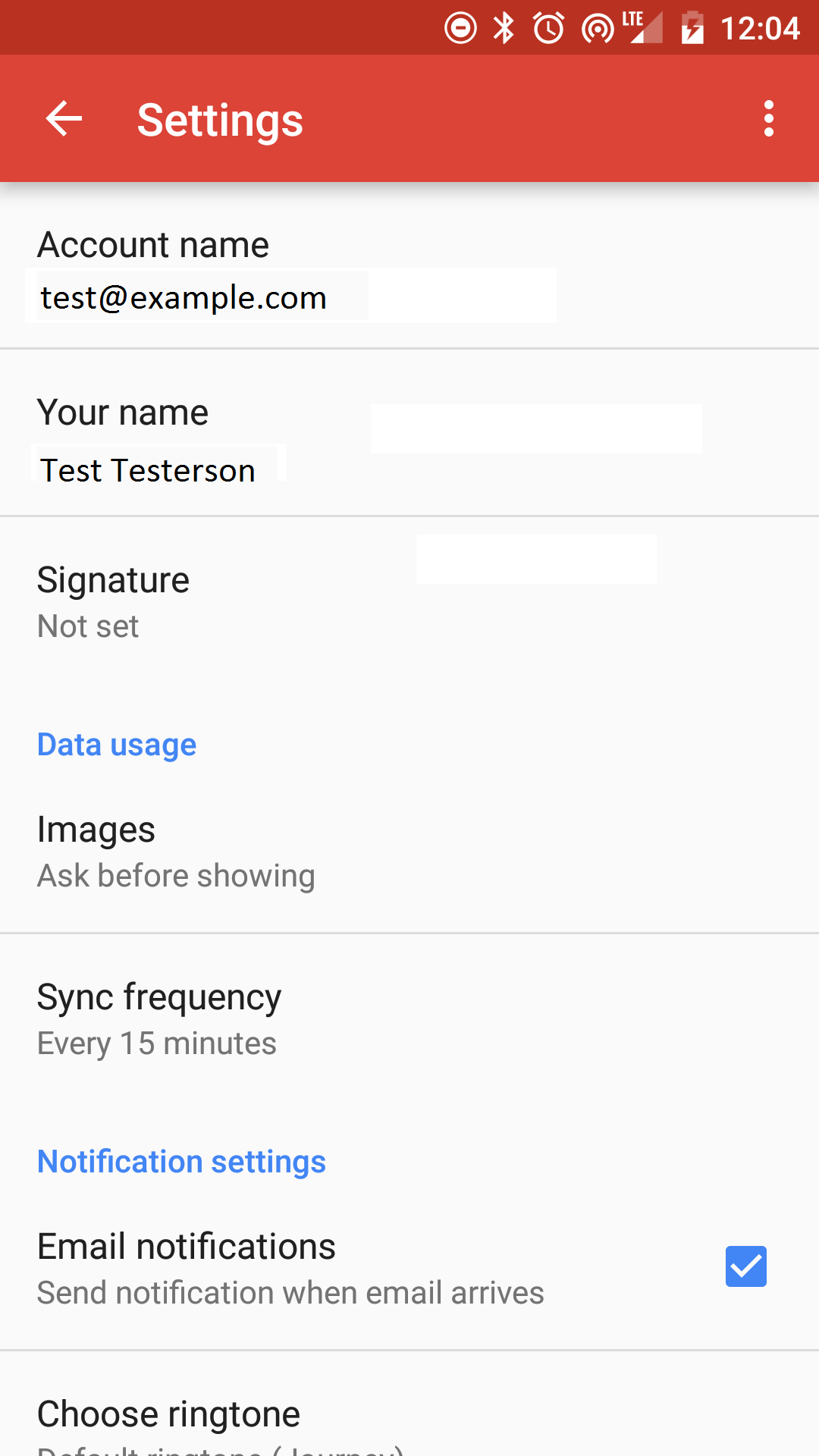
- Select the account that you wish to change and the scroll down and select More Settings.
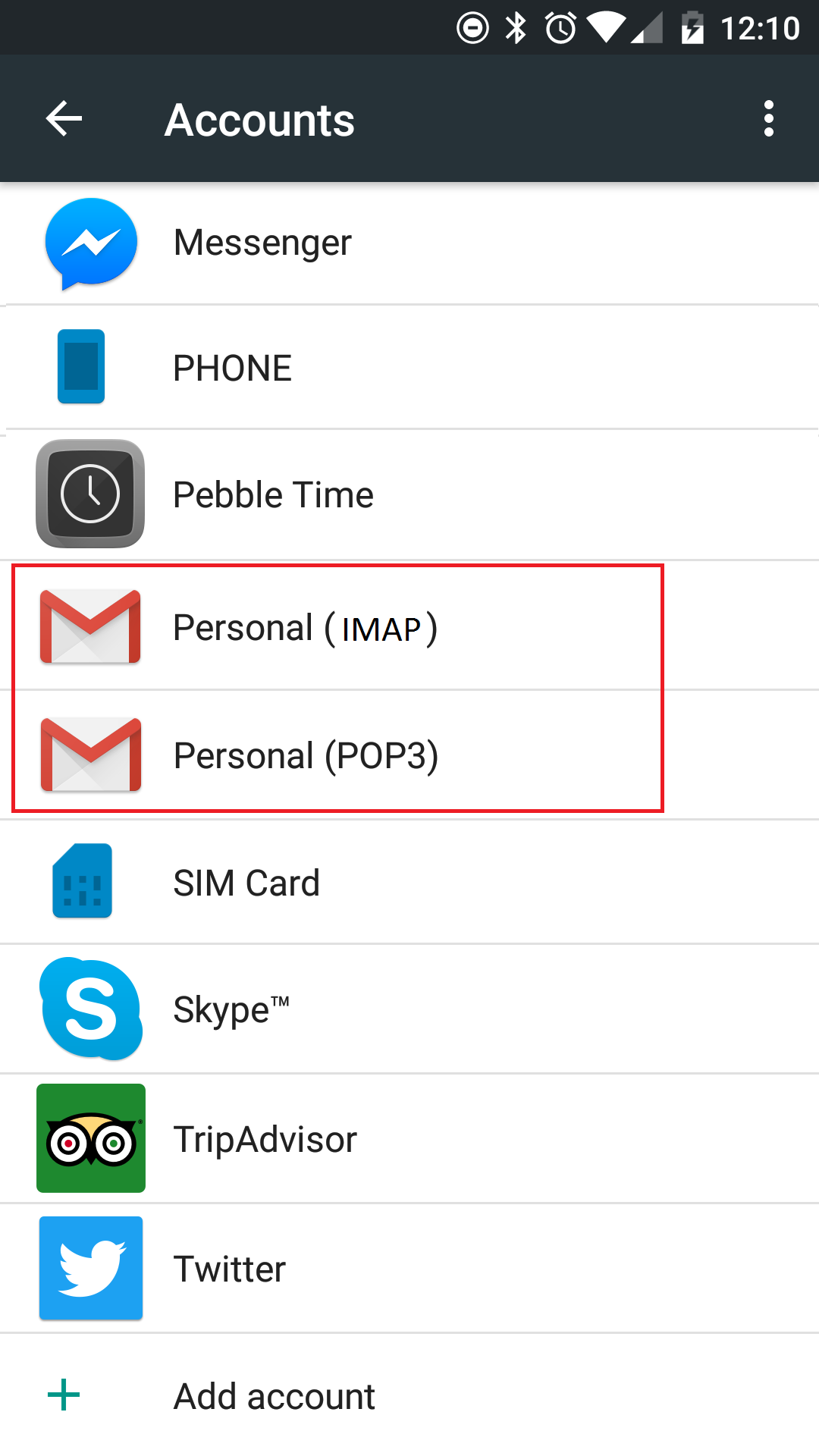
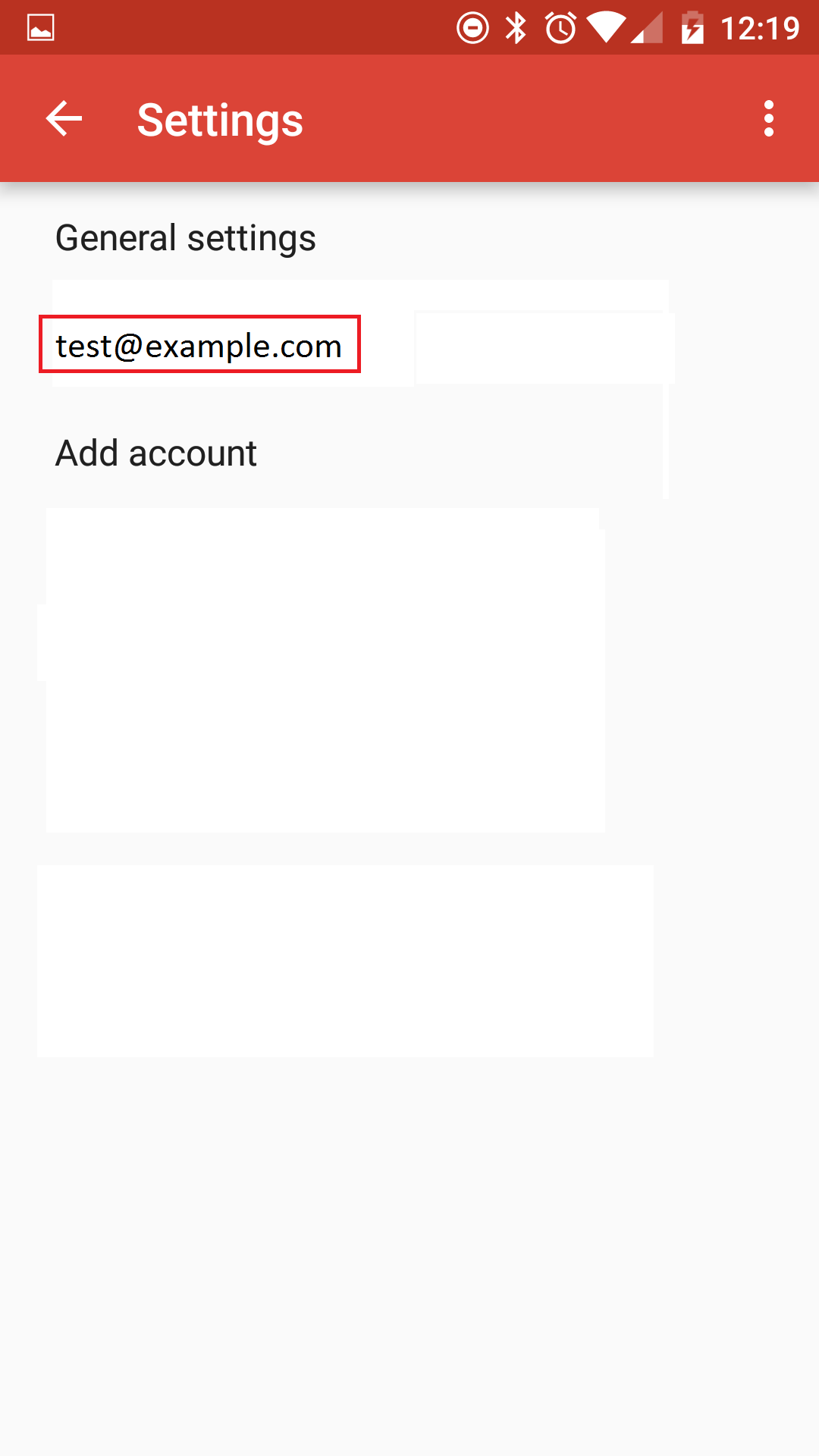
- Scroll down again to change your Incoming Settings and Outgoing Settings
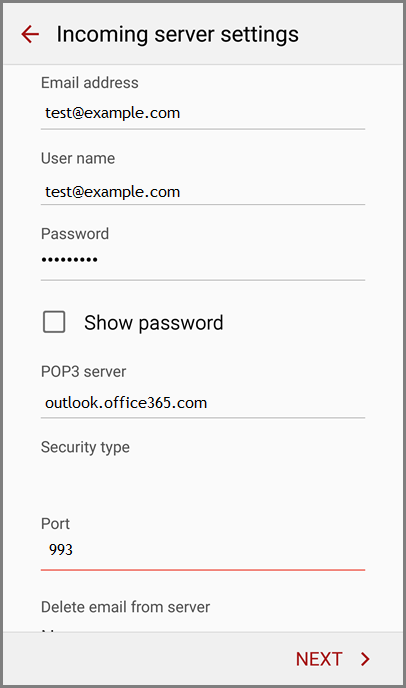
User Name: Type your email address, for example test@example.com
Password: Your email password
Server Name: outlook.office365.com
Security Type: SSL
Port: 995
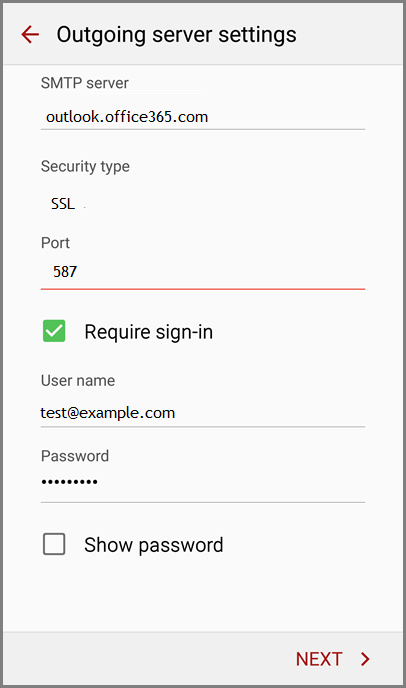
 Outgoing Mail Server
Server Name: outlook.office365.com
Outgoing Mail Server
Server Name: outlook.office365.comSecurity Type: SSL
Port: 995
Require sign-in: On
Email Address: Type your email address, for example test@example.com
Password: Your email password
- In Account name type a name for this account and the name you want displayed when you send e-mail to others.
- Tap Done.