

- An active email service, like MS365 or cPanel
- Your email address is created and you know the password
- If needed, you have the incoming and outgoing settings. For MS365, you wont need this as it will be setup as Exchange.
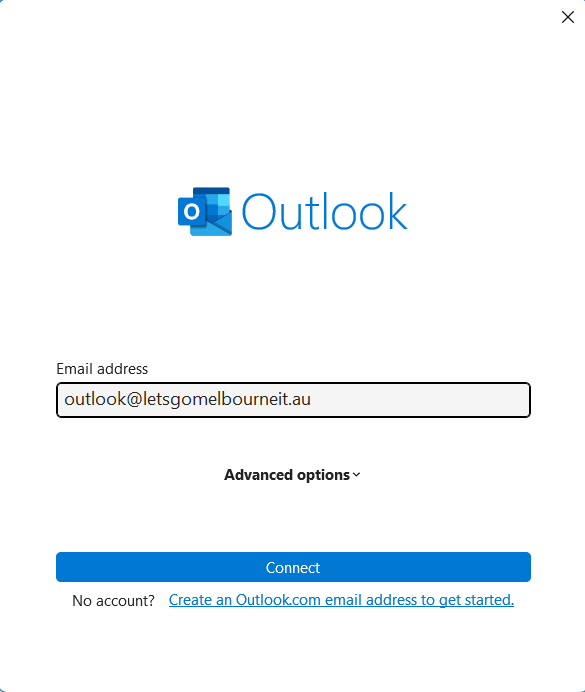
Once you have your Outlook open, select add account and enter in your email address.
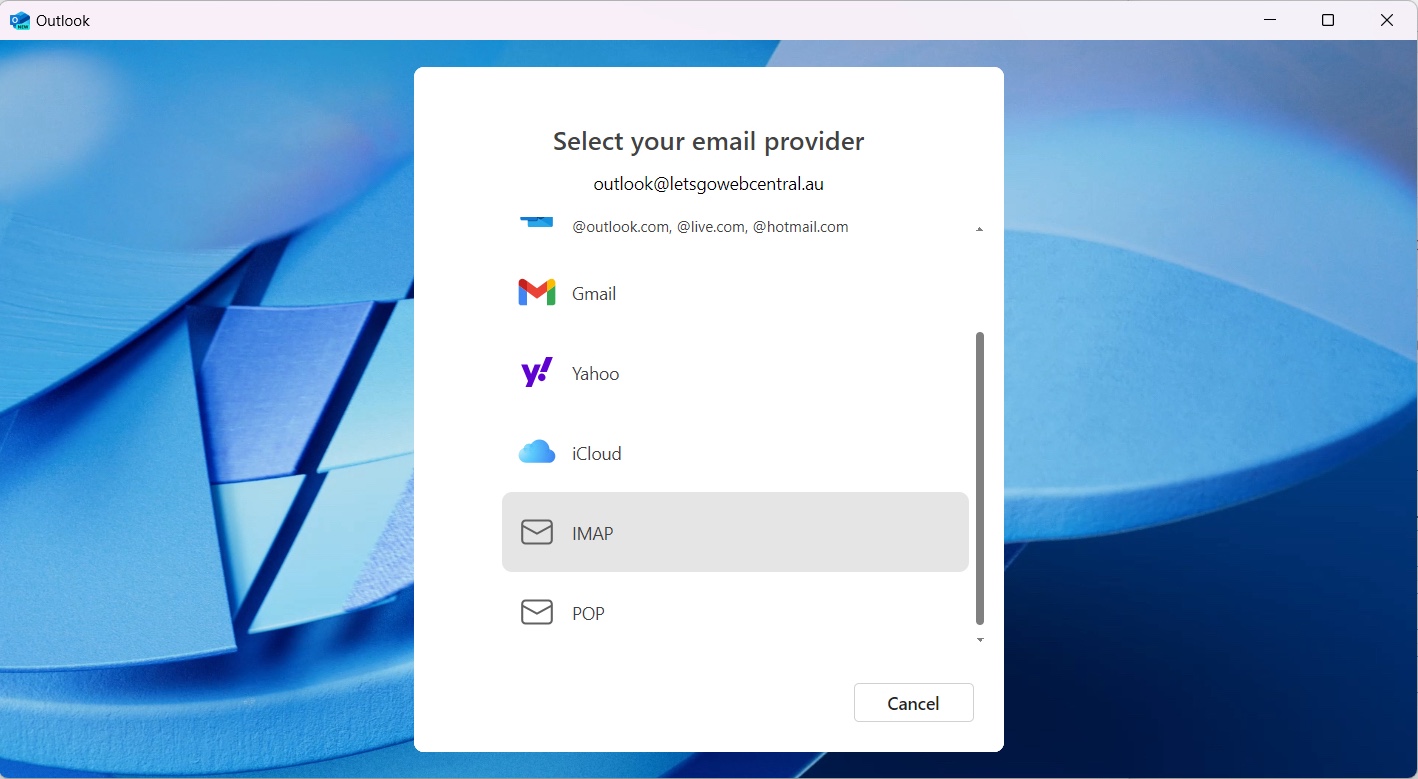
- If you have Microsoft 365, select Microsoft 365 and follow the prompts then skip to step 5
- If you have cPanel or Cloud email service, please select IMAP
 Step 2
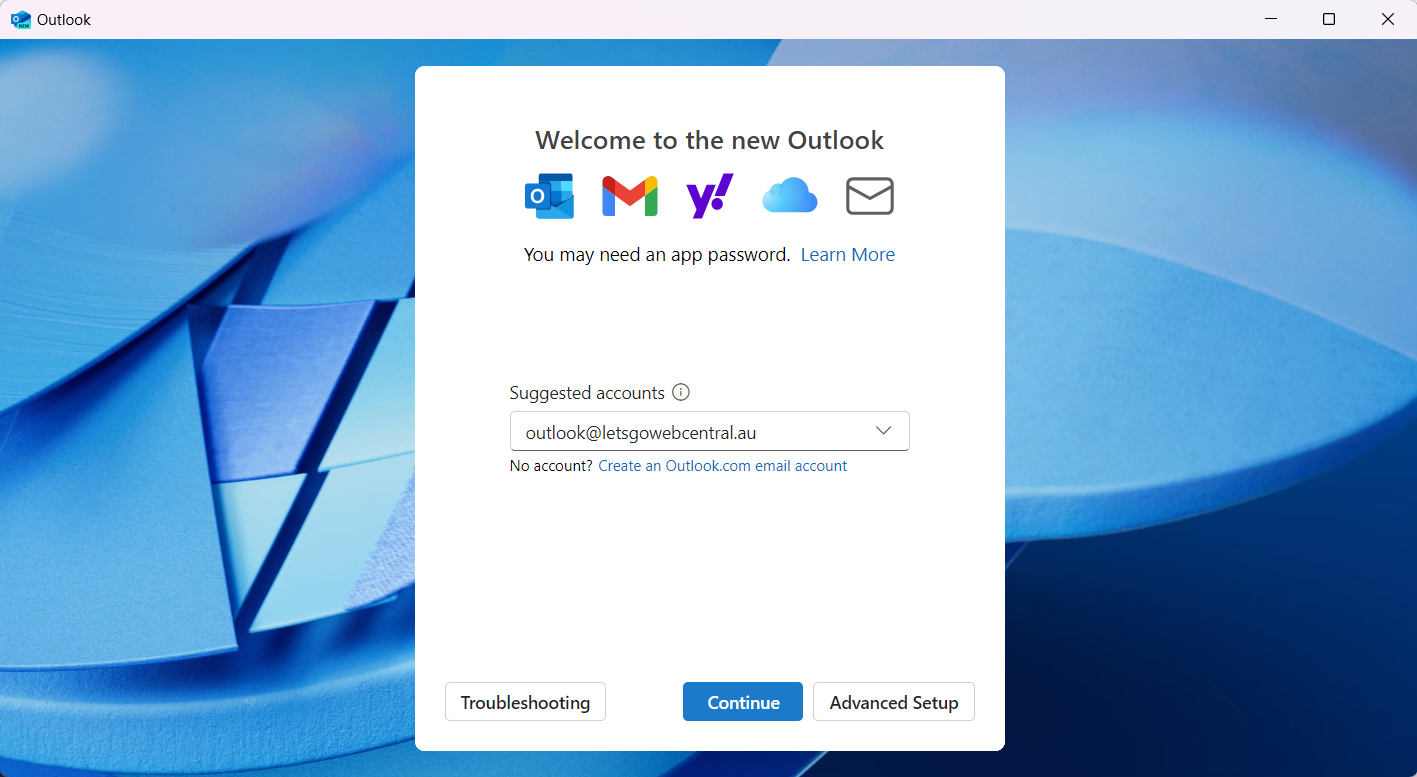
Enter in your email address and click Continue
 Step 3
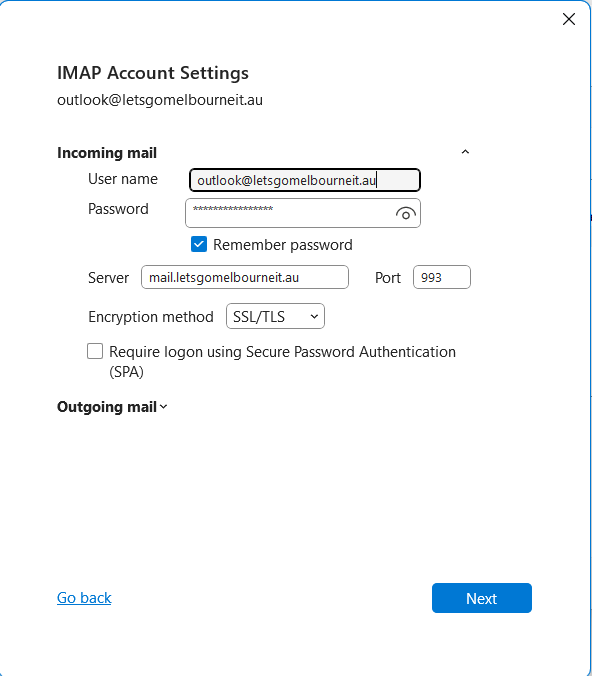
If presented, type in or copy the server settings from the Email Settings support article and click Continue
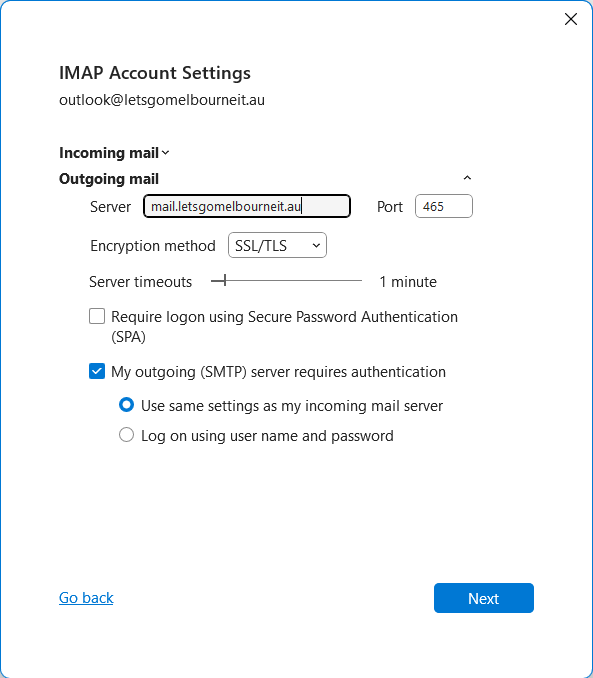
Outlook will continue through the setup questions. This is your chance to read and agree to the terms, change the display language and if applicable, agree. You can choose to customise language and privacy settings for Outlook (New) during these steps. Step 5 Once the setup is complete and the window closes, check the main screen of Outlook. You may see an initial test email automatically sent by outlook. If you already have a lot of email in your webmail, it may take some time to download them all, but this will depend on your internet connection.